How to Plan Outfits With Your Own Virtual Avatar
Published · Updated
A saved outfit photo can show you something you like without showing how your own clothes might work together. Perhaps you have a similar shirt. The trousers in your closet are a different shape, and you would rather wear trainers than the shoes in the picture.
Virtual avatar styling gives you another way to explore those choices. In BeSpoke AI Stylist, a visual version of you can be used alongside a digital closet, so outfit building starts with your clothes rather than an unfamiliar shopping list.
Virtual Avatar Styling at a Glance
- Create your digital self: Use the avatar setup to build a visual reference based on your appearance.
- Bring your clothes online: Add the items you want to use to Closet.
- Build an outfit: Compare garments from that collection instead of relying on memory.
- Try on the look: Review the virtual preview before choosing what to try in person.
- Check the real clothes: A generated image does not establish physical fit or comfort.
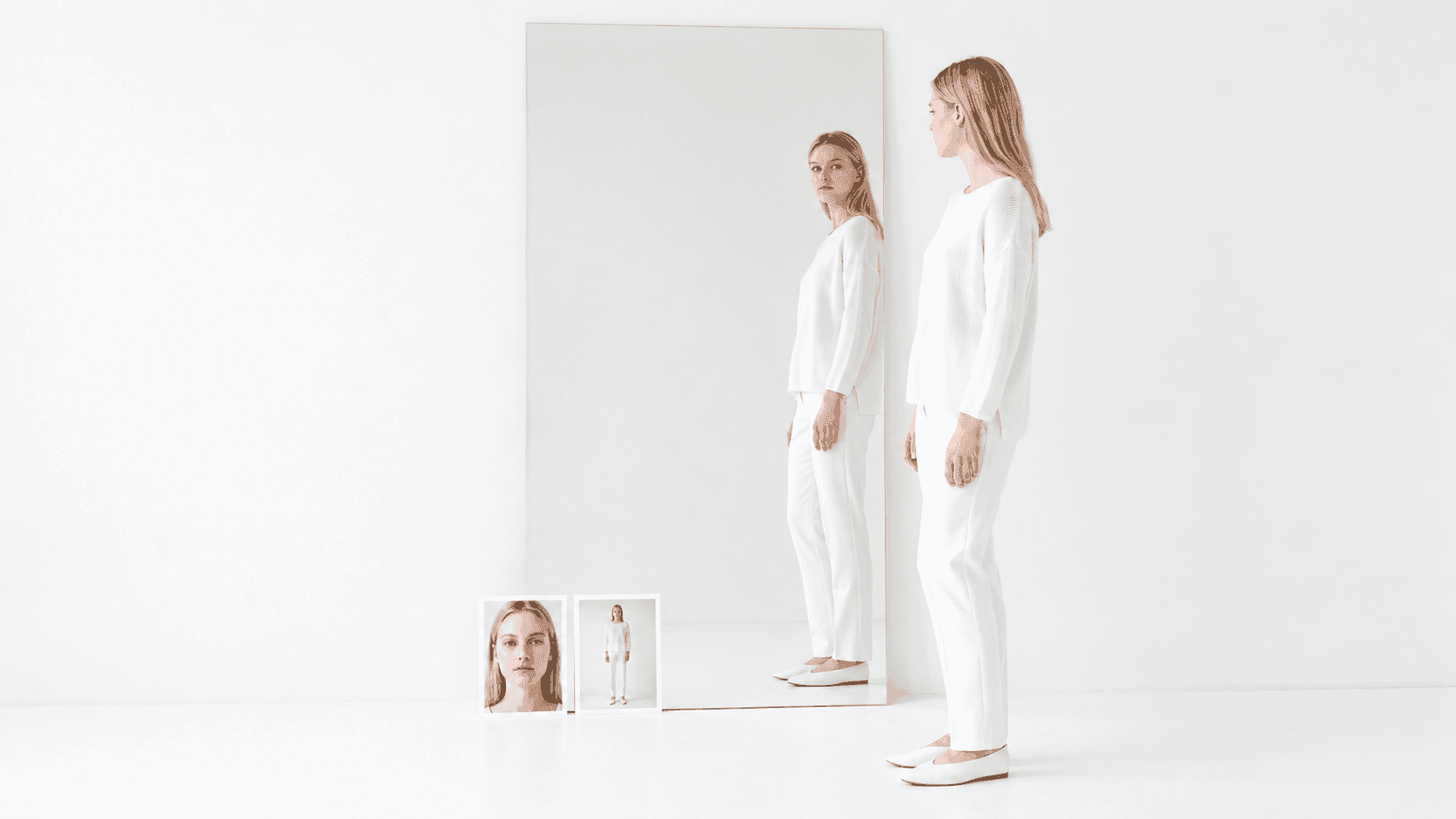
A virtual avatar provides a personal reference for exploring an outfit.
The avatar begins with your appearance. BeSpoke's avatar concept uses your face and body proportions as the reference for a virtual version of you. Follow the setup prompts in your app rather than assuming a fixed number of uploads from an example image.
An avatar is useful when you would like to see an outfit on a personal reference instead of a different model for every look. Review the result before moving on. You should be able to recognise the features you intended to provide.
- Use your own reference images. Follow the requested views and keep the relevant parts of the body visible.
- Look over the avatar. Notice any obvious difference that would affect how useful the preview is to you.
- Keep expectations specific. You are creating an image for styling, not a set of tailoring measurements.
- Review the upload information. Read the current privacy policy before sharing personal photos.
The example illustrates a portrait beside a full-length view. It does not establish a universal photo count or a measurement procedure for every app version.
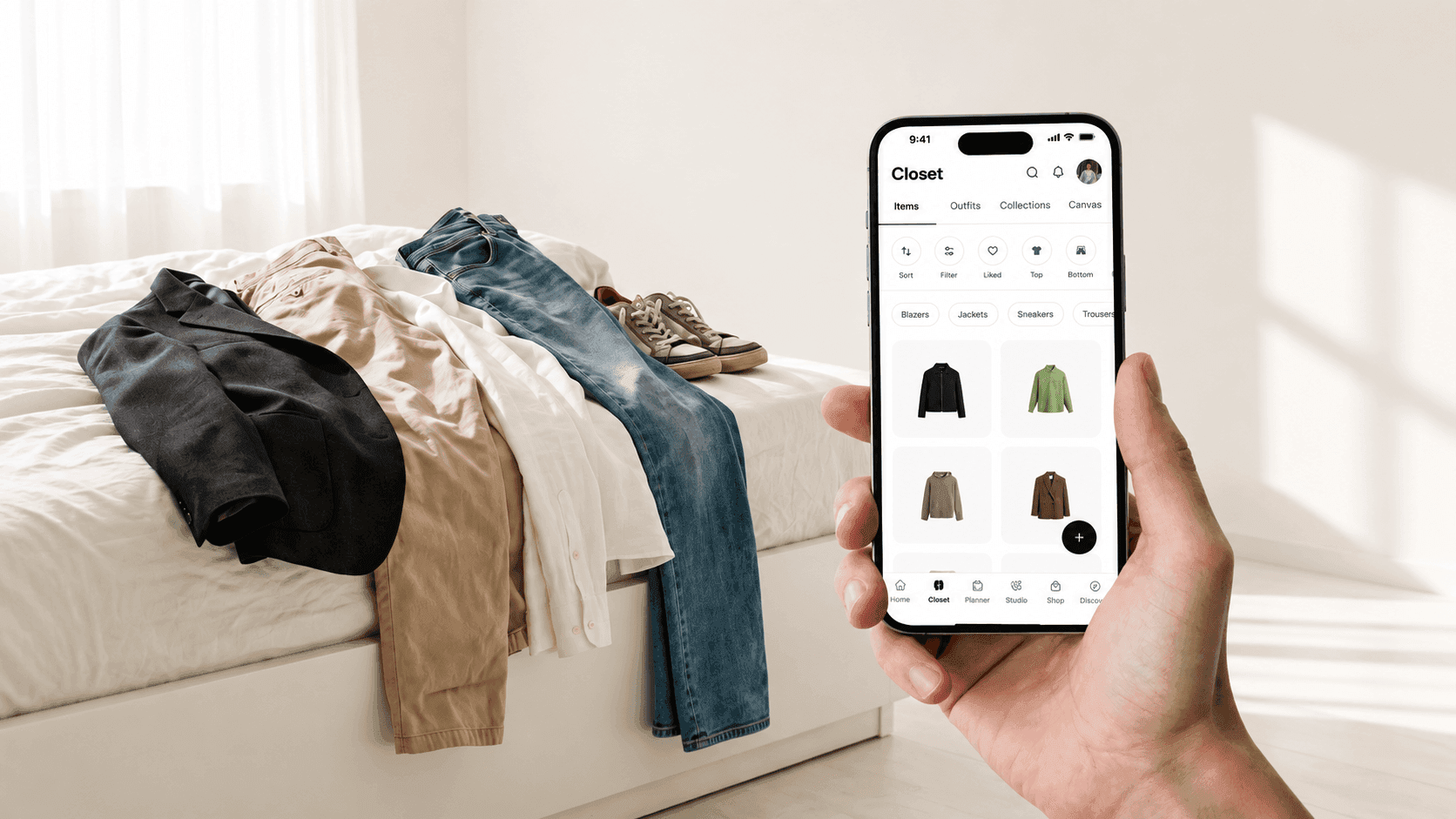
The clothes you already have become the items you can return to on screen.
Adding clothes to Closet gives the avatar something relevant to wear. Start with the items you are considering for an outfit. There is no need to photograph everything you own before making the first comparison.
The Closet view shows garments as separate entries. This lets you look at a shirt without needing to remember which outfit photo it last appeared in. The digital closet guide explains the inventory side in more detail.
Try this as a manageable first session:
- Choose one item you want to wear. A shirt you have been overlooking is enough.
- Add the pieces you would consider with it. Include the footwear when it matters to your decision.
- Review the images. Make sure you can tell the garments apart and recognise the details you need.
- Build from that group. Expand the closet later as you want to try other outfits.
These are practical suggestions for getting started, rather than a required upload sequence. Use the controls available in your version of the app.
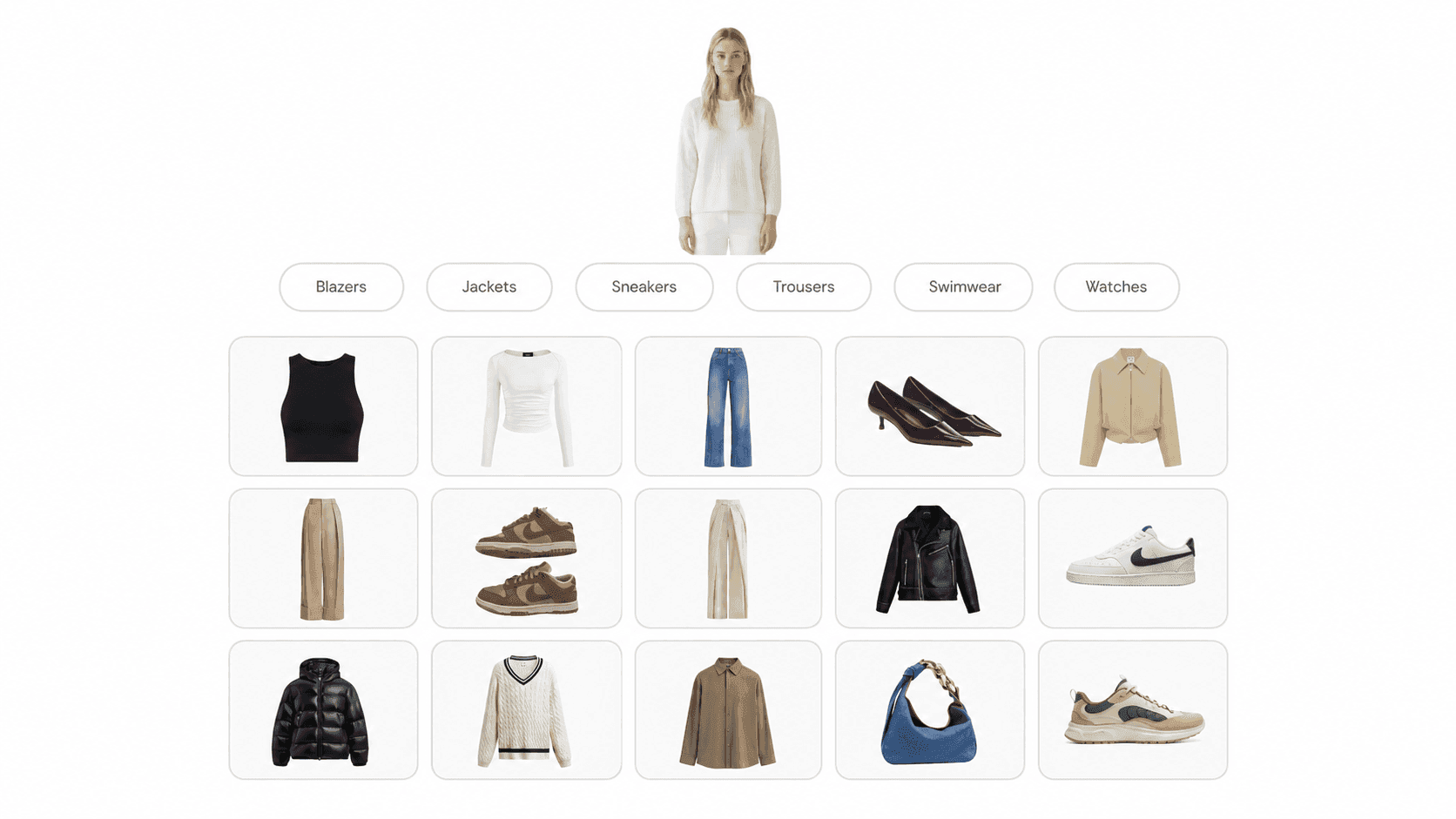
Separate item images let you consider a different top before changing the rest of the outfit.
Once the clothes are visible together, choose the outfit you want to compare. A black sleeveless top and a white long-sleeve top would give the same jeans different upper shapes. That is a specific choice you can make before considering another pair of trousers.
The garment grid includes footwear alongside clothing. Add that part of the look before deciding it is finished. Trouser length can look different above trainers than it does above a pointed shoe, even when the trousers themselves have not changed.
For a visual planning space, explore outfit building with Canvas. A layout can help you compare the items; the virtual try-on is the next step when you want to see the outfit on your avatar.
- Keep one part of the outfit in place. Change the top while leaving the jeans, for example.
- Include the item you are uncertain about. A preview is more useful when it answers a question you already have.
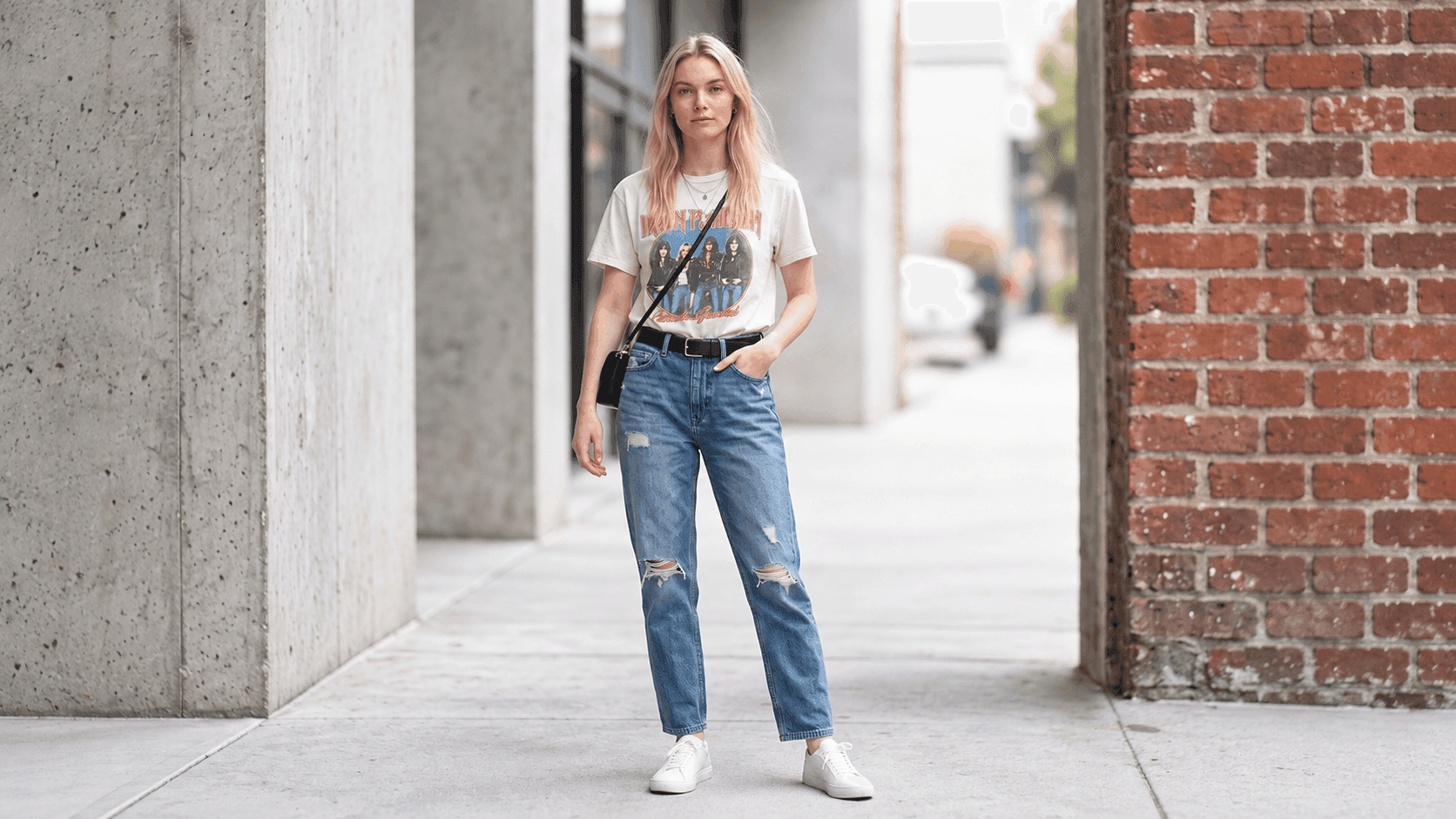
A graphic T-shirt and jeans become a complete visual outfit with white trainers.
The try-on example shows a graphic T-shirt tucked into blue jeans, with white trainers visible below the hems. A dark crossbody bag sits against the light top. Instead of assessing each item separately, you can now look at the complete arrangement.
Use the preview to notice details you would like to test. You might prefer the top untucked, or want to compare another pair of shoes. The virtual try-on guide introduces this kind of visual preview.
- Check the whole frame. Look for the clothing and accessories you intended to include.
- Review the proportions shown. Notice where the top finishes and how much of the shoes remains visible.
- Compare the result with your items. A generated detail may not reproduce the real garment exactly.
- Try the clothes physically. The image cannot tell you whether the waistband feels tight when you sit down.
Give the exercise a small question: would you rather wear the white top or the black one with these jeans? That question is easier to answer than asking an app to find your entire personal style at once.
After reviewing the image, put on the option you prefer. Check that the real outfit works for your plans. Keep a record of the combination you enjoyed wearing, and add the next item to your digital closet when you need it.
This also helps you reconsider existing clothes. An item that looks unfamiliar beside one top may make more sense beside another. The decision can remain about the clothes already available to you.
What is a virtual avatar for outfit styling?
It is a digital visual reference of you used to preview clothing. In this workflow, the avatar is paired with a digital closet so you can build outfits from your own items.
Is a digital closet the same thing as an avatar?
No. Closet holds the clothing items. The avatar provides the personal visual reference on which an outfit can be previewed.
Do I have to add every item I own first?
You can begin by adding the clothes you want to compare. A small group is enough for a first outfit exercise. Follow any setup requirements shown in the app.
Does virtual try-on confirm that the clothes will fit?
No. It provides a visual preview. Check the real garment's size and try it on to assess physical fit and movement.
Can I use this before buying something new?
You can use your existing items to explore what you would wear together before deciding anything is missing. A preview does not confirm stock availability or guarantee that a pictured product is for sale.
Start With an Outfit You Want to Wear
Choose a few clothes you already have a reason to use. Create your digital reference and add those items to Closet. Open BeSpoke AI Stylist to explore the outfit, then bring the idea back to the clothes themselves.
Sources and Further Reading
Ready to upgrade your style game? Download BeSpoke AI Stylist and let your AI stylist take it from here.

Author
Neeraj Bansal